
Script Libraries

AppleScript Libraries provide a plugin architecture for extending the power and abilities of AppleScript. AppleScript Libraries are user-created script files and bundles, composed in AppleScript or AppleScript/Objective-C, which contain specialized commands that can be referenced in scripts to provide extra or “missing” functionality.
Greater Scope
As mentioned above, AppleScript libraries written using AppleScript/Objective-C, provide access to standard Cocoa classes and methods. With “use statements”, the number of available Cocoa methods increases dramatically, enabling script libraries to access specified frameworks, such as Foundation, AppKit, or WebKit.
Installing Script Libraries
AppleScript Libraries are installed and made available for use by AppleScript scripts, by placing their files within a folder titled: “Script Libraries”. A Script Libraries folder can reside in a variety of locations, depending on how you want to define their availability on the computer.
The illustration below outlines four possible locations for a Script Libraries folder:
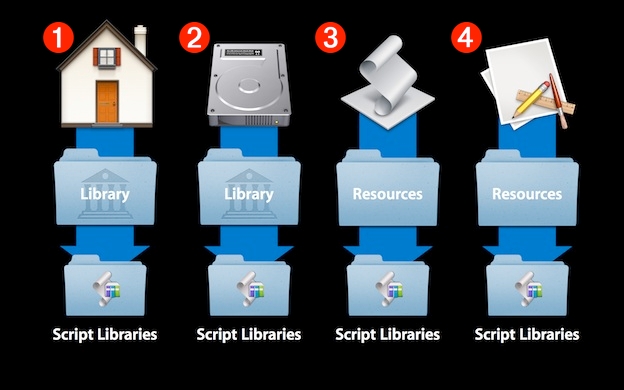
1 Home Library folder - To enable the use of an AppleScript Library by the current user account, place AppleScript Library files inside a Script Libraries folder located in the user’s Library folder.
2 Computer Library folder - To enable the use of an AppleScript Library by all user accounts, place AppleScript Library files inside a Script Libraries folder located in the computer’s Library folder.
3 Applet/Script Bundle Resources folder - To enable the use and distribution of an AppleScript Library by a script applet, or script bundle ("scptd"), place AppleScript Library files inside a Script Libraries folder located in the applet’s or script bundle’s Resources folder. NOTE: Applet and script bundle libraries are only available to scripts running inside the applet’s process, or the application running the script bundle.
4 Application Resources folder - To enable the use and distribution of an AppleScript Library by an application that executes AppleScript scripts, place AppleScript Library files inside a Script Libraries folder located in the application’s Resources folder. NOTE: Application-bundle libraries are only available to scripts running inside that application’s process.
Simple Script Library
While AppleScript Libraries can vary in the complexity of their design and implementation, their purpose is the same: to provide easy access in scripts to collections of specialized commands and handlers.
An AppleScript Library’s source code may be written in standard AppleScript, or it may employ AppleScript/Objective-C to access methods and classes from standard Cocoa frameworks such as Foundation and AppKit, and even import specialized frameworks such as MapKit, EventKit, or WebKit.
Regardless of the kind of AppleScript Library you create, the process of creating the library is similar for every type:
Script code containing routines and handlers, is placed into a script file or bundle, which is then saved and placed into the Script Libraries folder in your local Library folder to become available for use by other scripts.
Follow the steps detailed below to create and use a simple AppleScript Library.
Create and Save a Script File
To create a simple AppleScript Library, written in AppleScript, open a new plain AppleScript script document. Save the new document as a standard script file by choosing “Compiled Script” from the Format popup menu in the Save dialog (see below):
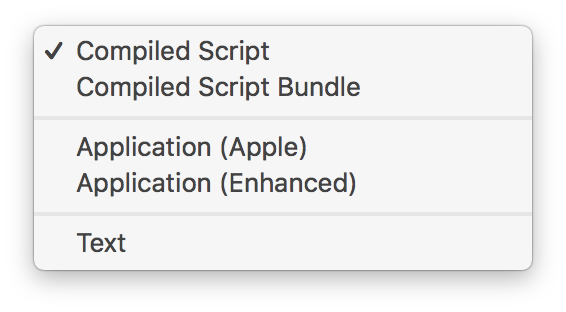
For this example, name the script: Simple AppleScript Library. By default, the saved script file will have a name extension of “scpt”.
| Call AppleScript Library | ||
| 01 | tell script "Simple AppleScript Library" | |
| 02 | basenameFromFileReference(choose file) | |
| 03 | end tell | |
AppleScriptObj-C Libraries
In some situations, the functions of the native AppleScript language and its standard set of scripting additions, may be lacking in the ability to perform a certain task, such as transforming the case of text.
Fortunately, AppleScript/Objective-C (introduced in OS X v10.6) provides access to the thousands of functions that make up OS X’s powerful Cocoa frameworks.
| AppleScriptObj-C Library | ||
| 01 | on basenameFromFileReference(aReference) | |
| 02 | set aPath to the POSIX path of aReference | |
| 03 | set cocoaString to ¬ | |
| 04 | current application's NSString's stringWithString:aPath | |
| 05 | set fileName to cocoaString's lastPathComponent() | |
| 06 | set baseName to fileName's stringByDeletingPathExtension() | |
| 07 | return baseName as text | |
| 08 | end basenameFromFileReference | |
| Call AppleScript Library | ||
| 01 | tell script "ASOC Library" | |
| 02 | basenameFromFileReference(choose file) | |
| 03 | end tell | |
Terminology
To make it easier to remember and implement library commands, AppleScript Libraries can be written to publish their own scripting terminology, viewable to users using the AppleScript Editor’s dictionary viewer. The Alert Utilities script library is an example of the use of terminology.
Resources
And here is a link to Shane Stanley’s free AppleScriptObj-C libraries. Thank you Shane! FileManager
This webpage is in the process of being developed. Any content may change and may not be accurate or complete at this time.
DISCLAIMER